Getting Started

Products | General Overview

The Products section in Orbit is where you manage the items, services, digital products, and subscriptions available in your store.

5 min read0viewsUpdated May 7, 2026Orbit Support Team

The Products section in Orbit is where you manage the items, services, digital products, and subscriptions available in your store.

From here, you can create new products, manage pricing, add product images, control inventory, configure variants, set shipping information, organise products into categories, and improve how products appear in search engines.

Accessing Products

To access your products:

  • From the left-hand menu, go to Commerce.

  • Select Products.

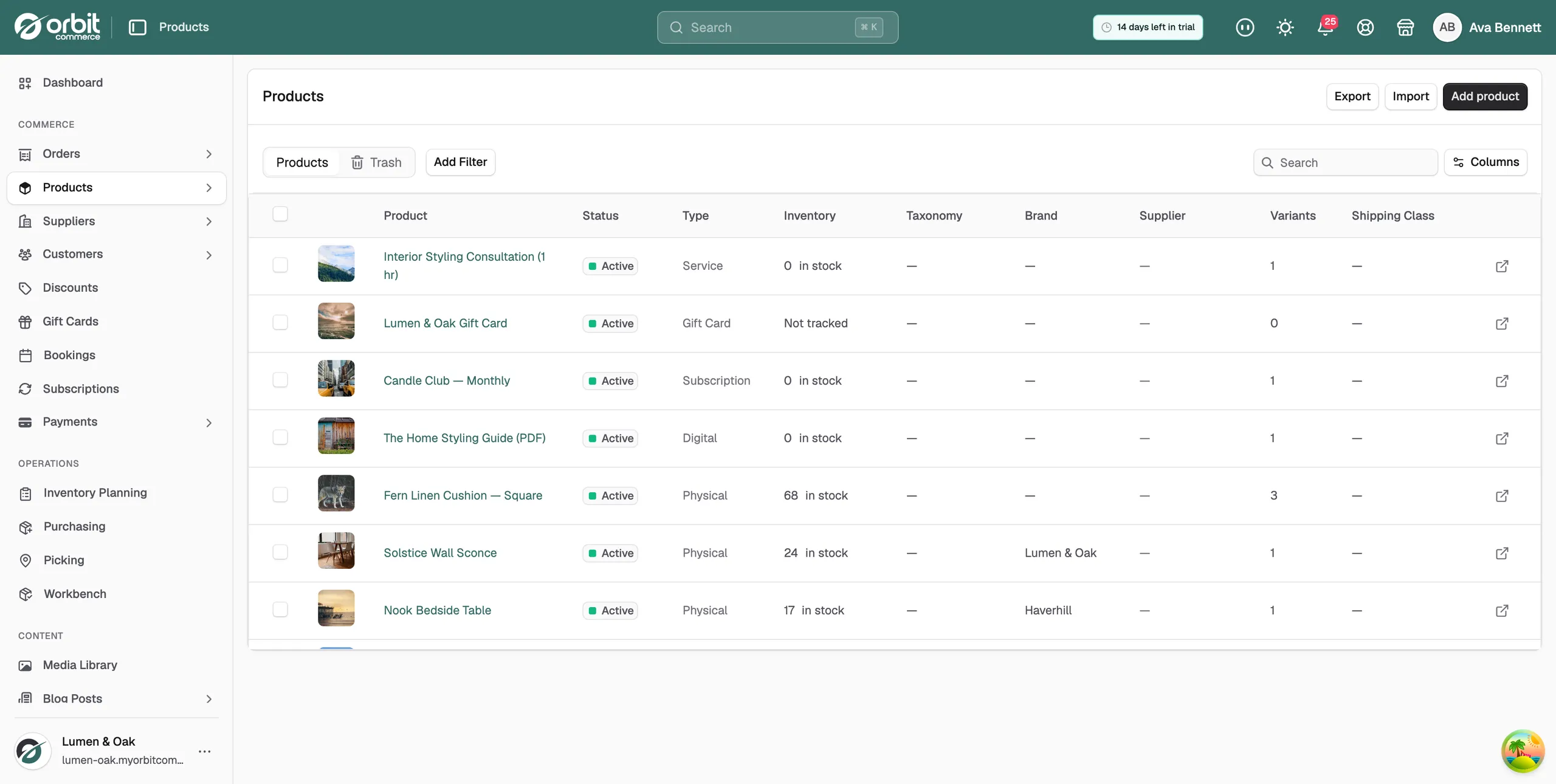
The Products page will display a list of existing products in your store.

From this page, you can view product information such as:

  • Product image

  • Product name

  • Status

  • Product type

  • Inventory level

  • Taxonomy

  • Number of variants

  • Shipping class

  • Custom type

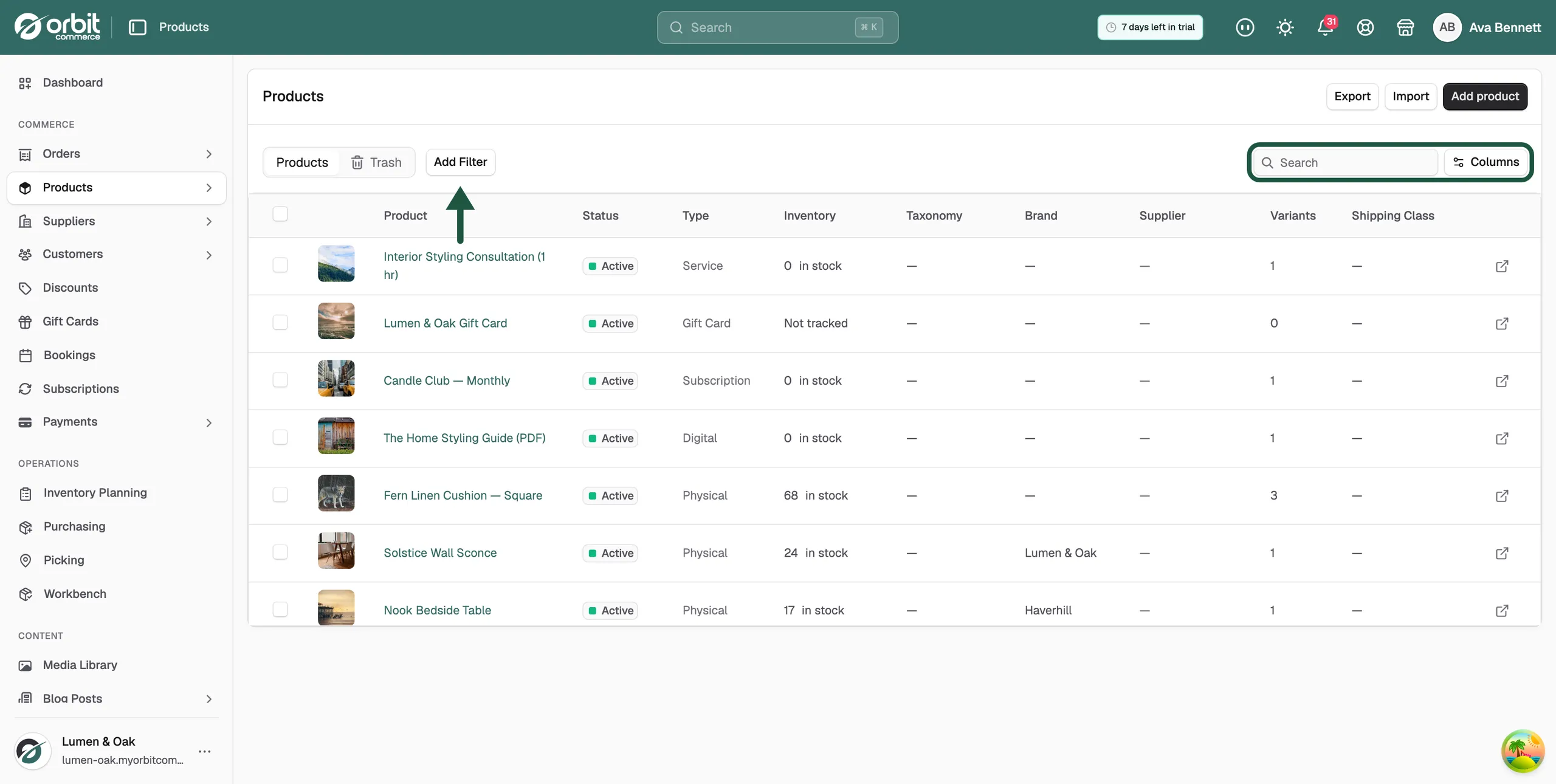
You can also use the search bar to quickly find a product.

Managing the Products table

The Products table can be customised to show the information most useful to you.

Add filters

Use Add Filter to narrow down the product list and find specific products more easily.

Search products

Use the Search field to search for products by name or other product details.

Manage columns

Click Columns to choose which columns appear in the Products table.

Some columns, such as Image and Product, may be pinned by default.

Adding a new product

To create a new product:

  1. Go to Products.

  2. Click Add product.

The New Product page will open.

  1. Complete the relevant product sections.

  2. Click Save draft or Publish.

You can also use the three-dot menu next to Publish to schedule the product to be published later.

Product setup sections

The New Product page is split into several sections to help you configure the product correctly.

These sections include:

  • Title & media

  • Pricing

  • Variants

  • Search engine listing

  • Inventory

  • Shipping

  • Taxonomy, brand & tags

  • Linked products

  1. Title, description & media

The Title, description & media section contains the main product information shown to customers.

  • Product type

Choose the type of product you are creating:

  • Physical Product — for tangible items that require shipping.

  • Digital Product — for downloadable files or digital content.

  • Subscription — for recurring billing with configurable plans.

  • Service — for professional services or consultations.

  • Title

Enter the product name in the Title field.

  • Description

Use the description editor to add detailed product information. This may include product features, sizing information, materials, usage instructions, or anything else customers should know before purchasing.

The editor allows you to format the description using options such as bold text, lists, links, images, alignment, and other formatting tools.

  • Media

Use the Media area to add product images, videos, or 3D models.

You can:

  • Drag and drop files into the media box.

  • Click Upload new to upload media from your device.

  • Click Select existing to choose media already available in Orbit.

  1. Pricing

The Pricing section is where you configure the product’s selling price and cost information.

Available fields include:

  • Price — the selling price of the product.

  • Compare-at price — the original or previous price, often used to show discounts.

  • Cost per item — the cost to you for the item.

  • Profit — calculated based on the price and cost.

  • Margin — calculated based on the price and cost.

The Price field is required.

  1. Variants

Use Variants when a product has multiple options, such as different sizes, colours, materials, or styles.

To enable variants:

  • Tick This product has variants.

  • Enter an Option name, such as Size or Colour.

  • Add option values, such as S, M, L or Red, Blue, Green.

  • Click the plus button or press Enter to add each value.

You can also click Add another option if the product has more than one option type.

Each variant can have its own:

  • Image

  • Price

  • Compare-at price

  • SKU

  • Barcode

  • Inventory quantity

You can also use Apply price to all or Apply compare-at price to all to quickly update all variants.

  1. Search engine listing

The Search engine listing section controls how the product may appear in search engine results.

This section includes:

  • Preview — shows how the listing may appear.

  • Page title — the SEO title for the product page.

  • Meta description — the description shown in search engine results.

  • URL and handle — the product page URL.

The page title has a character limit of 70 characters, and the meta description has a character limit of 160 characters.

A clear search engine listing can help customers understand the product before clicking through to your store.

  1. Inventory

The Inventory section controls stock tracking for the product.

  • Track inventory

Tick Track inventory if you want Orbit to keep track of available stock quantities.

  • Quantity

Select the stock location, such as Main Warehouse.

If the product has variants, inventory quantities are managed against each variant in the Variants section. The selected location will be assigned to the variants.

  • Allow backorders

Tick Allow backorders if you want customers to continue purchasing the product even when it is out of stock.

  1. Shipping

The Shipping section is used for products that require delivery.

  • Physical product

Tick This is a physical product if the item needs to be shipped.

Untick this option for digital products, services, or virtual items.

  • Weight and dimensions

Enter the product’s:

  • Weight

  • Width

  • Length

  • Height

These details can be useful for shipping calculations and fulfilment.

  • Shipping class

If shipping classes are available, assign the product to the relevant shipping class. If no shipping classes exist, you can create them in Shipping Settings.

  1. Taxonomy, brand & tags

The Taxonomy, brand & tags section helps organise products in your store.

Available fields include:

  • Product Taxonomy — select a product taxonomy.

  • Custom Type — add a custom product type.

  • Brand — search for or create a brand.

  • Tags — search for or create tags.

  • Categories — assign the product to categories.

This information helps with store organisation, filtering, reporting, and customer navigation.

  1. Linked products

The Linked products section allows you to configure upsells and cross-sells.

  • Upsells

Upsells are products you recommend instead of the currently viewed product. These may be products that are more profitable, better quality, or more expensive.

  • Cross-sells

Cross-sells are products promoted in the cart based on the current product. These are usually complementary items that go well with the product being viewed.

Use the product search fields to select the products you want to link.

Saving, publishing, and scheduling products

At the top-right of the product page, you can choose how to save the product.

  • Save draft

  • Publish

  • Schedule publish

Importing and exporting products

From the main Products page, you can also use:

  • Export

  • Import

This is useful when managing products in bulk or updating product information outside the platform.

Why Products are important

Products are the foundation of your online store. Keeping product information accurate helps customers understand what they are buying, ensures stock levels are managed correctly, and makes the checkout and fulfilment process smoother.

Correct product setup also helps with search visibility, product filtering, shipping calculations, and upsell or cross-sell recommendations.

If you have any questions, please contact us at support@orbitcommerce.net

Was this helpful?

0 people found this helpful