Getting Started

Orders | General Overview

The Orders section in Orbit allows you to view, manage, update, and process customer orders from one central area.

5 min read0viewsUpdated May 7, 2026Orbit Support Team

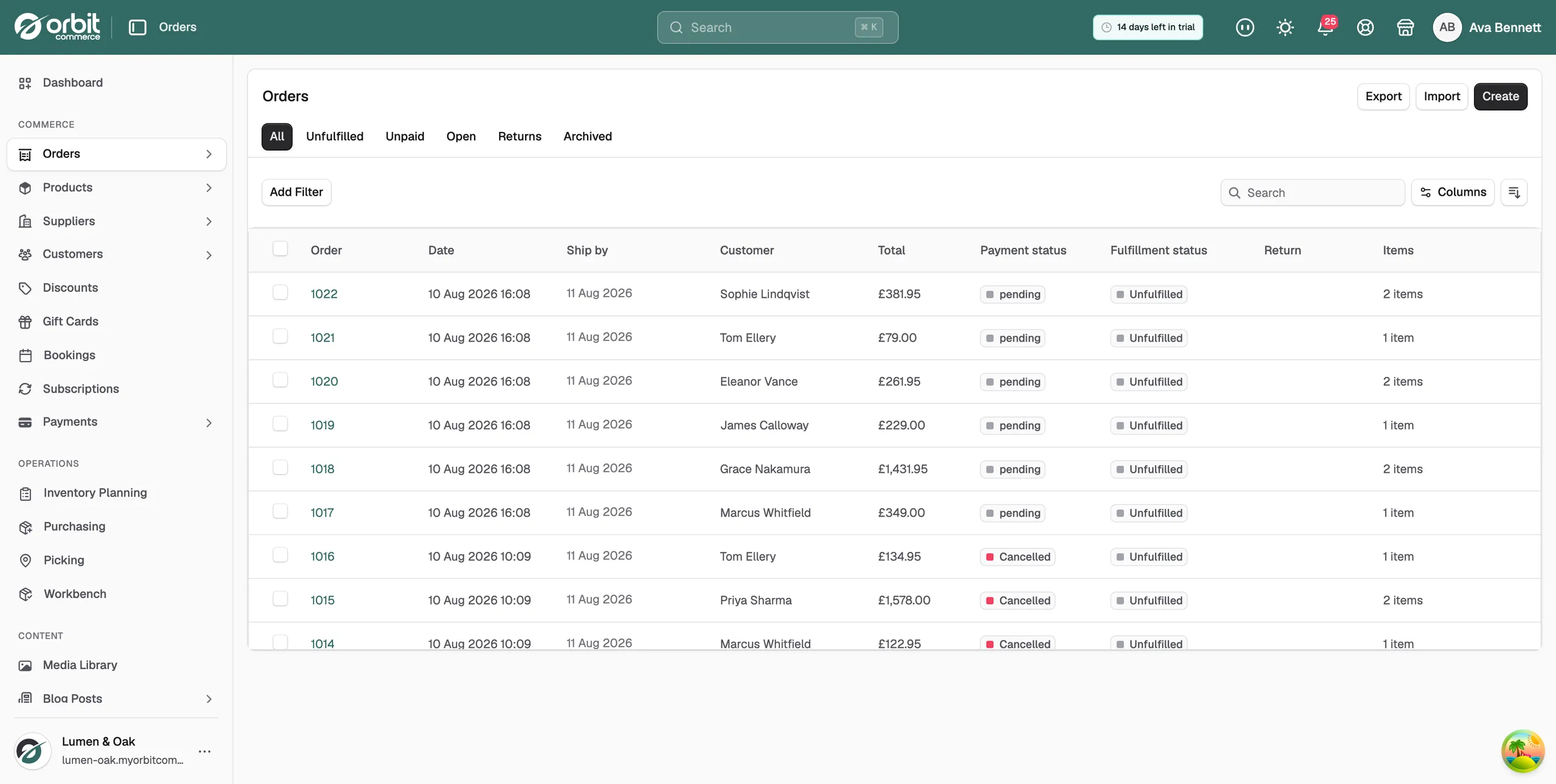
The Orders section in Orbit allows you to view, manage, update, and process customer orders from one central area. From here, you can review order details, check payment and fulfilment statuses, create new orders, manage returns, print documents, and perform bulk actions.

Accessing Orders

To access your orders:

  • From the left-hand menu, go to Commerce.

  • Click Orders.

You will be taken to the main Orders page, where all orders are listed in a table view.

Orders list overview

The Orders page displays your store’s orders in a table format. Each order row shows key information, including:

  • Order number

  • Date

  • Customer

  • Total

  • Payment status

  • Fulfilment status

  • Return status

  • Items

You can click an order number to open the individual order page.

Order tabs

At the top of the Orders page, you can use the available tabs to quickly filter orders by status:

  • All – shows all orders.

  • Unfulfilled – shows orders that still need to be fulfilled.

  • Unpaid – shows orders that have not yet been paid.

  • Open – shows currently open orders.

  • Returns – shows orders with return activity.

  • Archived – shows archived orders.

Searching, filtering, and sorting orders

You can use the Search field to find specific orders by relevant order information.

The Add Filter button allows you to apply filters to narrow down the order list.

You can also sort the order table using the sorting menu. Orders can be sorted by fields such as:

  • Order number

  • Date

  • Customer name

  • Payment status

  • Fulfilment status

  • Total

Sorting can be applied in either ascending or descending order.

Managing columns

The Columns button allows you to customise which columns are displayed in the order list.

This is useful if you only want to see the information most relevant to your workflow, such as payment status, fulfilment status, return status, or item count.

Creating an order

To create a new order manually:

  1. Go to Orders.

  2. Click Create in the top-right corner.

  3. Enter the required order, customer, product, and payment details.

  4. Save or complete the order as required.

Manual order creation is useful for phone orders, custom orders, draft orders, or orders created outside the online storefront.

Importing and exporting orders

The Orders page includes Import and Export options.

Use Import to bring order data into Orbit from an external file or system.

Use Export to download order information from Orbit, which can be useful for reporting, finance checks, fulfilment workflows, or external processing.

Bulk managing orders

You can select one or more orders using the checkboxes on the left-hand side of the order table.

Once selected, bulk action options become available.

Opening an individual order

To view more information about an order, click the order number from the Orders list.

The individual order page shows the full details of the selected order, including the order number, order date, payment status, fulfilment status, customer details, items, totals, returns, notes, tags, and timeline.

Why Orders are important

The Orders section is one of the main areas of Orbit because it helps you manage the full order journey from one place. It gives you visibility of what has been purchased, who the customer is, whether payment has been received, and whether the order has been fulfilled.

If you have any questions, please contact us at support@orbitcommerce.net

Was this helpful?

0 people found this helpful