Setting up stock locations
Add the warehouses, shops and third-party sites where you keep stock, choose your default location, and edit or delete one safely.
A stock location is a place you keep stock. It can be a warehouse, a shop, or a third-party site that holds and ships goods for you. Each location keeps its own stock levels, so you always know how much of a product is held where. You manage them under Products > Inventory.
Considerations
- Orbit sets up one location for you, called Main Warehouse. All your stock sits there until you add another.
- There is always exactly one default location. New products and anything that does not name a location go there.
- You cannot untick the default on the location itself. Set a different location as default instead.
- You cannot delete your default location. Its bin icon stays greyed out.
- Only a Name is required. Everything else can wait.
Open your locations
- From your Orbit dashboard, go to Products > Inventory.
- Click Locations. The Inventory Locations page opens and lists every location you have.
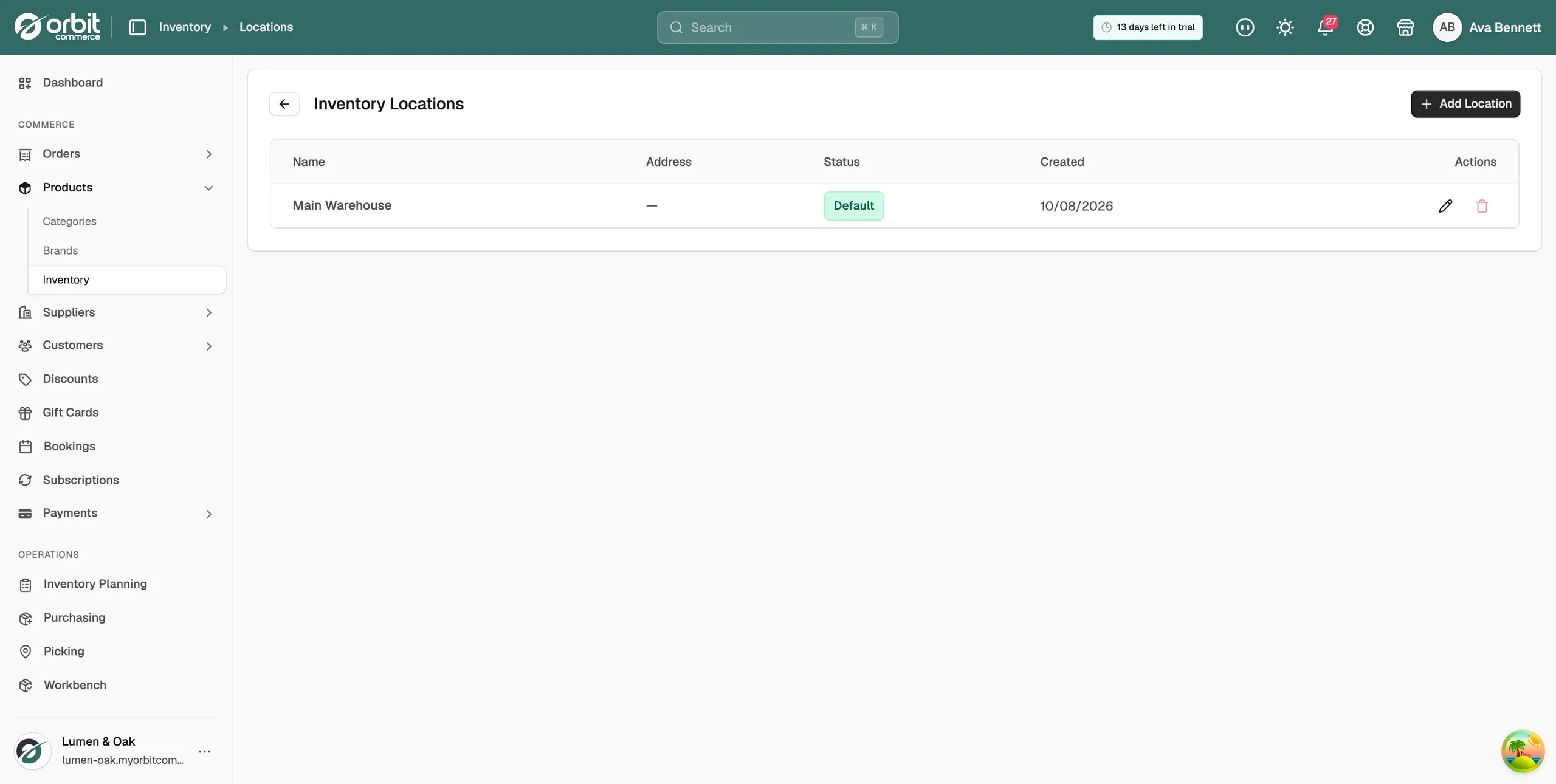
What the list shows
- Name: the name you gave the location, such as Main Warehouse or Bath Shop.
- Address: the postal address, if you added one.
- Status: a Default badge on your default location. Other rows show a dash.
- Created: the date the location was added.
- Actions: a pencil icon to edit and a bin icon to delete.
Add a location
- On the Inventory Locations page, click Add Location. The Create Location window opens.
- Type a Name, such as Main Warehouse or Warehouse 1. This is the only field you must fill in.
- Start typing the Address. Orbit suggests matching addresses as you type. Pick the right one and it fills in the rest, postcode and all.
- Tick Set as default location if new stock should land here.
- Click Create. Orbit confirms with Location created and the new row appears in the list.
Tip: The address is used as the ship-from point for anything sent out of this location, including carrier rates and customs paperwork. Keep it accurate.
Change your default location
The default is where stock goes when no location is chosen. New products are stocked there, orders are fulfilled from there, and imports that do not name a location land there.
- Find the location you want to make the default.
- Click the pencil icon in the Actions column.
- Tick Set as default location.
- Click Update. The Default badge moves to that row and leaves the old one.
Note: Changing the default does not move any stock. It only changes where new activity lands. To move stock as well, use a transfer.
Edit a location
- Click the pencil icon in the Actions column. The Edit Location window opens.
- Change the Name, the Address or the default setting.
- Click Update.
Delete a location
- Click the bin icon in the Actions column.
- Read the warning, then click Delete.
Warning: Deleting a location cannot be undone. If the location still holds stock, transfer it out first. To remove your default location, make another location the default first.
How locations work with your stock
Stock is held per location, so one product can have a different quantity in each place. When you count or receive stock, you do it against a location. When an order is fulfilled, the stock comes off the location it ships from.
If you hold the same product in more than one place, use a transfer to move quantities between them, such as sending stock from your warehouse to a shop.
Related guides
Was this helpful?
0 people found this helpful