Customers | General Overview
The Customers section in Orbit allows you to view, create, manage, and maintain customer records in your store. Customer profiles help you keep track of contact details, addresses, marketing consent, order activity, spend history, notes, tags, and any custom information you need for your business.
You can use this area to quickly understand who your customers are, how much they have spent, what orders they have placed, and how they can be contacted.
Accessing Customers
To access your customers:
From the left-hand menu, go to Commerce.
Select Customers.

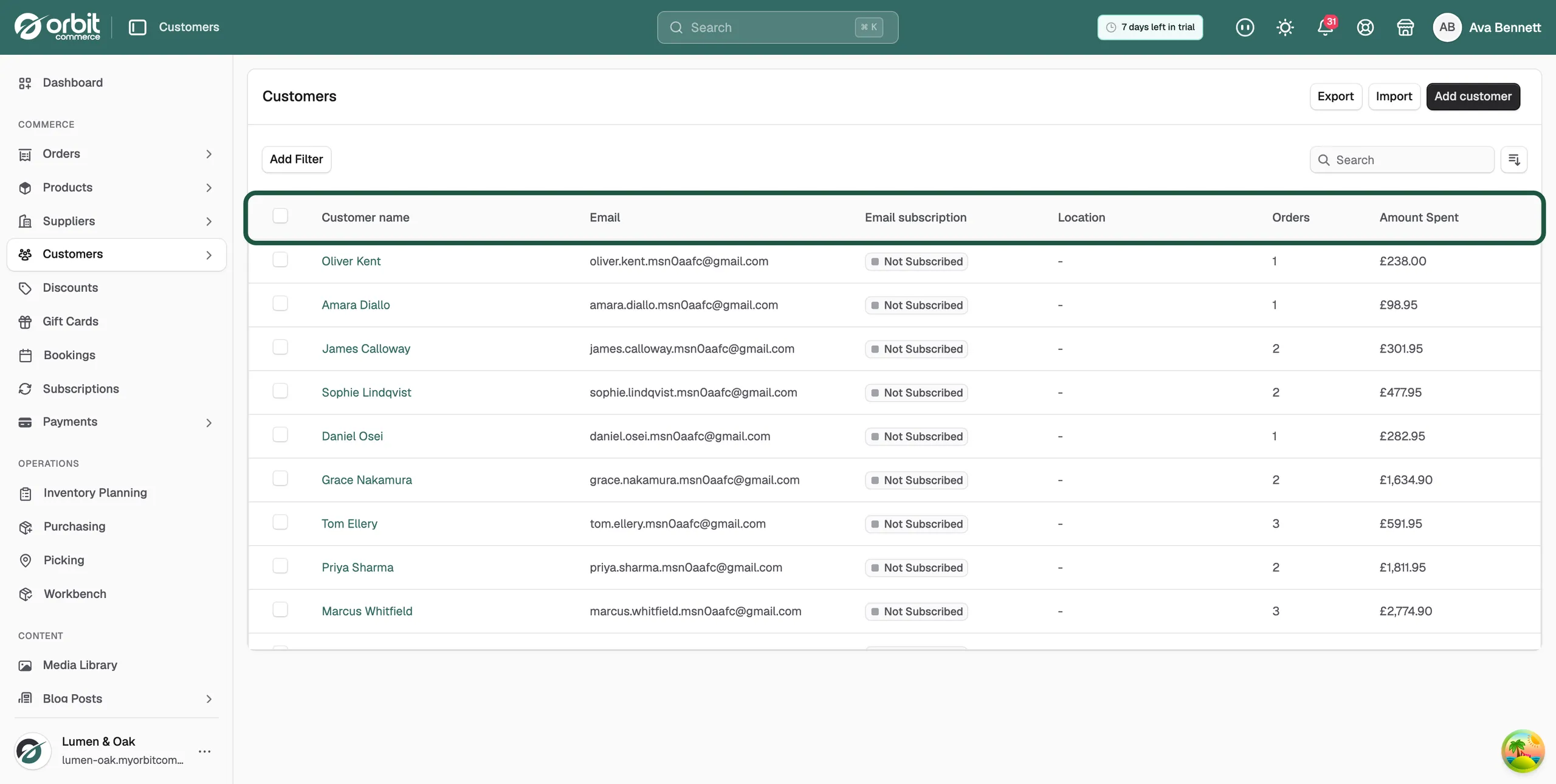
The Customers page will open, showing a list of customer records.
From this page, you can view existing customers, search for a specific customer, filter the list, import or export customers, and create a new customer.
Customer list overview
The customer list displays your customers in a table format.
The table includes:
Customer name
Email
Email subscription status
Location
Orders
Amount spent
This gives you a quick summary of each customer without needing to open their full profile.

For example, you can quickly see whether a customer is subscribed to marketing emails, how many orders they have placed, and how much they have spent in total.
Searching for customers
You can use the search field on the Customers page to find a specific customer.
This is useful when you need to quickly locate a customer by details such as their name or email address.
Filtering customers
The Add Filter button allows you to narrow down the customer list.
Filters can help you find specific groups of customers, such as customers with certain subscription statuses, order activity, or other available criteria.

Importing customers
The Import button allows you to bring customer data into Orbit.
This is useful when migrating from another platform or adding a large number of customers at once.
Exporting customers
The Export button allows you to export your customer records.
This can be useful for reporting, backups, data reviews, or using customer information outside of Orbit where required.

Creating a new customer
To create a new customer:
Go to Customers.
Click Add customer.
Enter the customer’s contact details.
Add their address information if required.
Add any notes or tags.
Click Create customer.
The new customer profile will then be added to your customer list.

Contact details
When creating or editing a customer, the Contact details section allows you to enter the customer’s basic information.
This includes:
First name
Last name
Email address
Phone number
Required fields are marked with an asterisk.
You can also select the correct country code for the phone number using the phone number country selector.

Marketing consent
The Contact details section also includes marketing consent options.
You can record whether the customer agrees to receive:
Marketing emails
Marketing SMS messages
You should only enable these options if the customer has given permission to receive marketing communication.

Adding a customer address
The Address section allows you to add the customer’s default address.
This address can be used as the customer’s default shipping and billing address.
The company name, second address line, country, and phone number may be optional depending on your setup.

Notes and tags
The Notes & tags section allows you to add internal information about the customer.
Customer notes
Customer notes are private notes that are only visible to staff.
Tags
Tags can be used to categorise customers and create customer segments.
You can enter tag names separated by commas if you want to add multiple tags at once.
Tags make it easier to group customers and identify specific customer types later.

Viewing a customer profile
Clicking a customer from the customer list opens their full customer profile.
The customer profile gives you a detailed view of that customer’s information and activity.
At the top of the profile, you can see a summary including:
Total spent
Number of orders
Last order date
Customer since date
This gives you a quick overview of the customer’s relationship with your store.

Customer profile sections
The customer profile is organised into several sections.
These include:
Contact
The Contact section shows the customer’s name, email address, and marketing subscription status.
You can see whether they are subscribed or not subscribed to email and SMS marketing.
Address
The Address section shows the customer’s default address.
This is useful when checking delivery or billing information.

Notes
The Notes section shows any private internal notes added to the customer profile.
If no notes have been added, this section will show that there are no notes.
Tags
The Tags section shows any tags assigned to the customer.
If no tags have been added, this section will show that there are no tags.
Orders
The Orders section shows the customer’s order history.
The order history table can include:
Order number
Date
Order status
Payment status
Fulfilment status
Total
This allows you to quickly review the customer’s previous purchases.

Payments
The Payments section shows the customer’s payment history.
If no payments are available, Orbit will show that no payments were found.
Custom fields
The Custom fields section can be used for additional customer information if custom fields have been configured.
If no custom fields have been created, Orbit will show that no custom fields are defined. You can manage these from the Custom Fields settings area.

Editing a customer
You can edit customer information from the customer profile.
To edit a customer:
Open the customer profile.
Click Edit or use the three-dot menu.
Choose the area you want to update.
Make the required changes.
Save the customer.
Available options may include:
Edit contact information
Manage addresses
Edit marketing settings

Emailing a customer
From the customer profile, you can use the Email button to contact the customer.
This gives you a quick way to start communication directly from the customer record.
Adding a note
The Note button allows you to add a note to the customer profile.
Notes are useful for internal communication between staff and for keeping track of customer-specific information.
Deleting customers
Customers can be deleted from either the customer profile or the customer list.
Deleting a single customer
To delete a single customer:
Open the customer profile.
Click the three-dot menu.
Select Delete customer.

Deleting multiple customers
To delete multiple customers:
Go to the Customers list.
Select the checkboxes next to the customers you want to delete.
Open the bulk action menu.
Select Delete customers.
Be careful when deleting customers, as this may remove important customer records from your store.

Moving a new customer draft to trash
When creating a new customer, you can use the three-dot menu and select Move to trash if you no longer want to continue creating that customer record.
Why is the Customers section important?
The Customers section gives you a central place to manage the people and businesses buying from your store.
It is useful because it helps you:
Keep customer contact details and addresses organised
View customer order history and total spend
Track marketing consent for email and SMS communication
Add internal notes for your team
Use tags to group or categorise customers
Import and export customer data when needed
Quickly identify customer activity, including orders and payments
If you have any questions, please contact us at support@orbitcommerce.net
Was this helpful?
0 people found this helpful